
How to Show Date and Time in the Created Column of a SharePoint List
In short: SharePoint shows only the date in a list's Created column by default. To display the time as well, create a calculated column that reformats the Created value, for example =TEXT(Created,"dd/mm/yyyy hh:mm"), and return it as a single line of text. It takes about two minutes in List Settings.
When you create a new SharePoint list, a “Created” column is
automatically generated. This column stores the date and time when
each item was created/added to the list. However, by default,
SharePoint displays the date, leaving out the time.
If your use case requires showing both the date and time, or if you want to customize the format of the “Created” column, SharePoint doesn’t allow you to directly edit columns like “Created.” But there’s a simple workaround.
You can create a calculated column and reformat the “Created” value into a new column that displays the exact date and time in the format you need.
How do you show both date and time in the Created column?
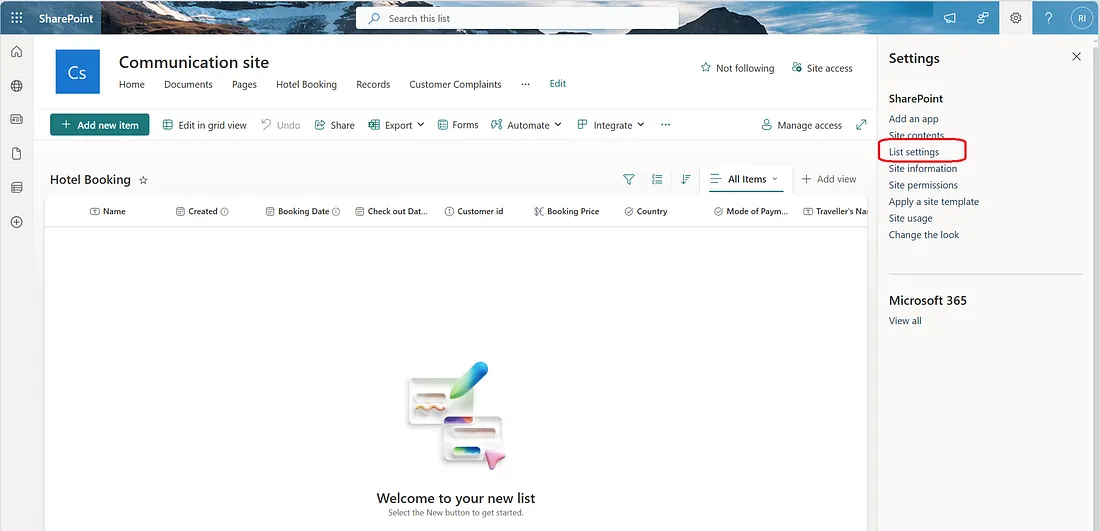
- Create a Calculated Column by navigating to the List Settings in your SharePoint list.
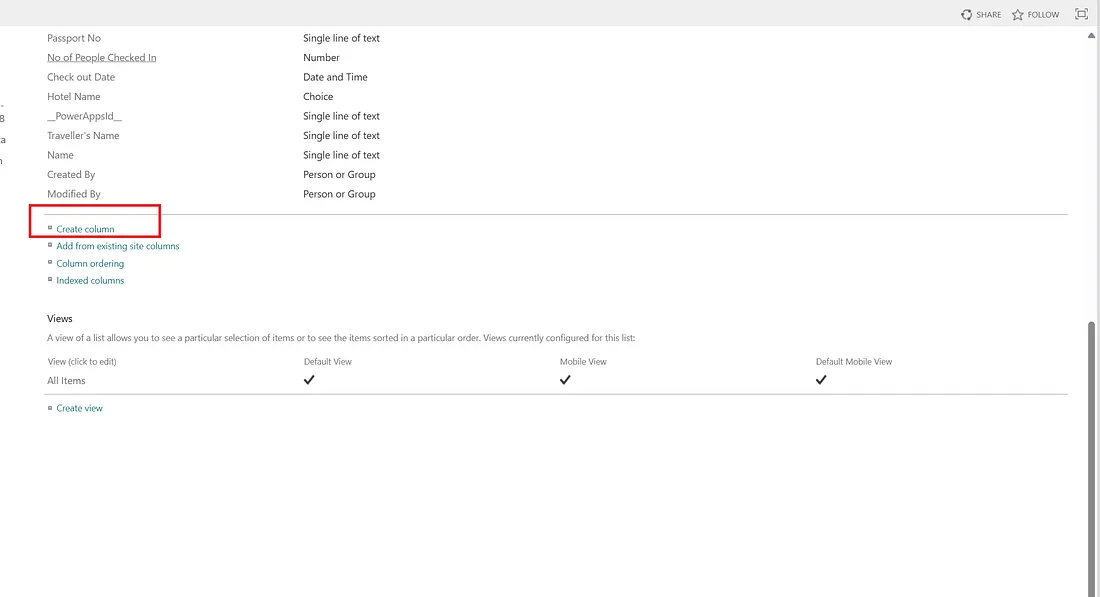
- Scroll down and click on Create column.
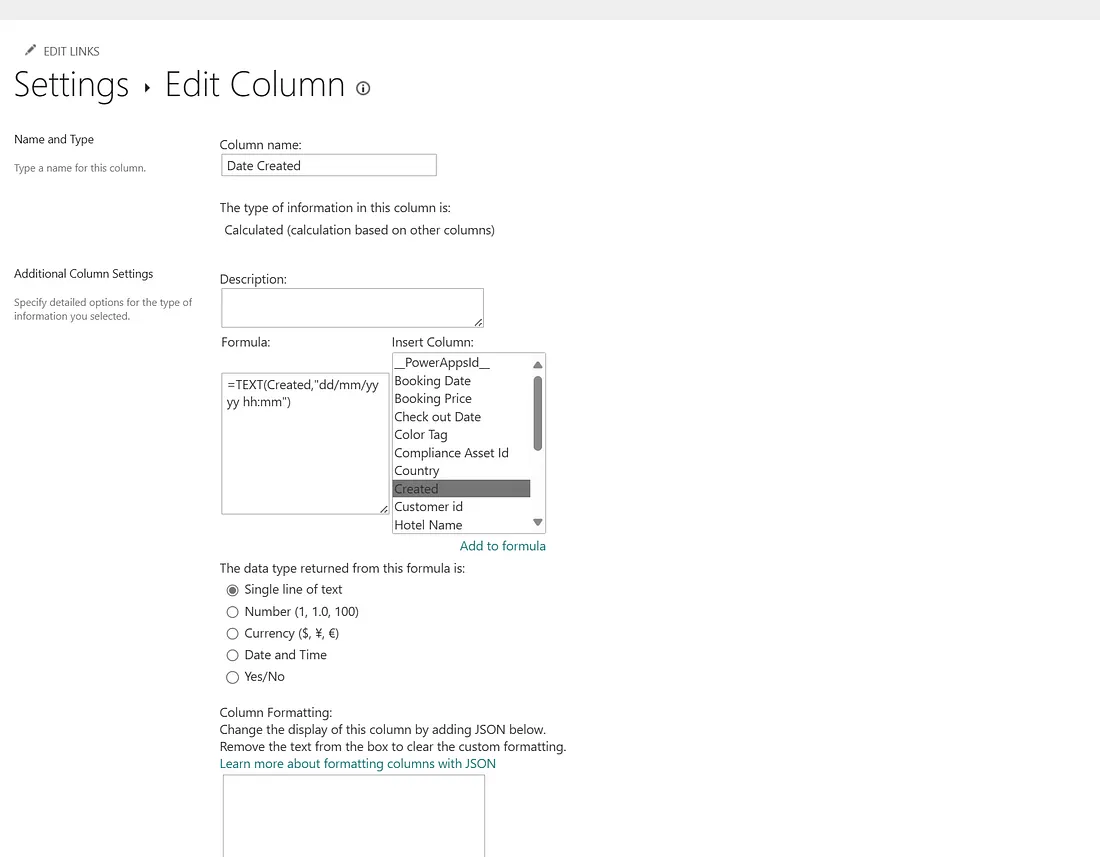
- Configure the Calculated Column:
=TEXT(Created,"dd/mm/yyyy hh:mm")
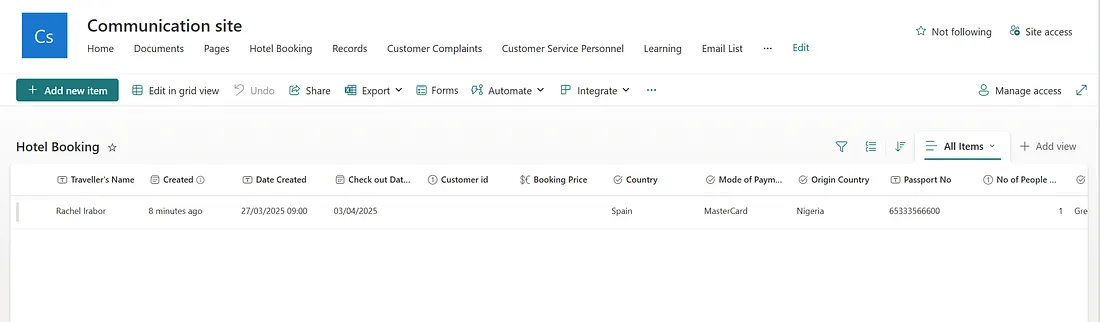
This formula will display the date and time in the format: 30/11/2025 14:30
- Finalize the Column:
Formatted timestamps are a small detail that makes a big difference, they are what keeps something like a payment approval audit trail readable at a glance. And SharePoint lists can do far more than store data: here is how they power automated crew assignment and job dispatch.
Thank you for reading!!!
---
What did you think of this post? Let me know on
Twitter
or
LinkedIn!
If you'd like help building something like this for your team, get in touch.

Questions or thoughts? Leave a comment
Comments are moderated, your comment will appear after approval.